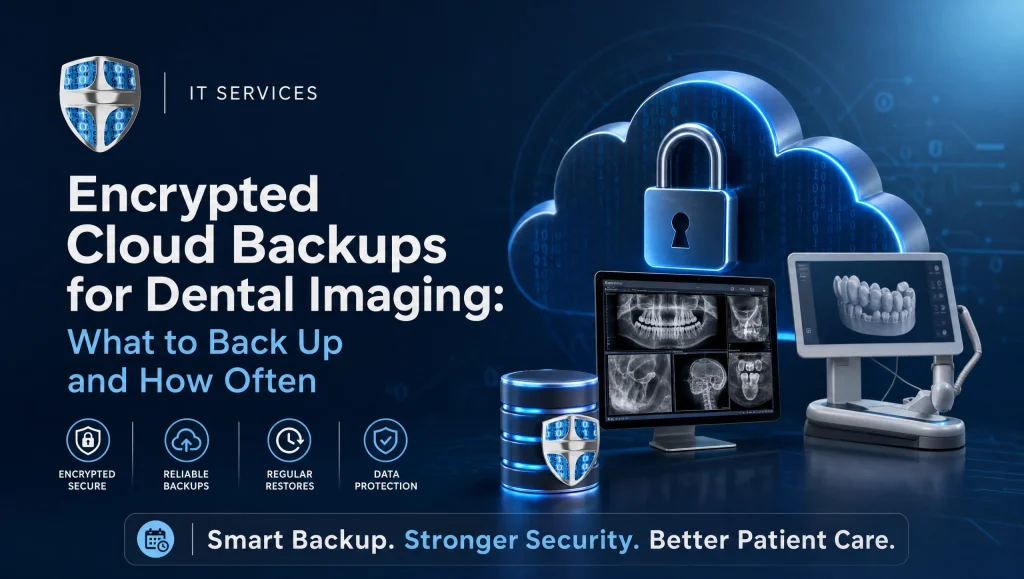
Encrypted Cloud Backups for Dental Imaging: What to Back Up and How Often
Houston dental teams rely on imaging every hour of every day—from bitewings to CBCT. Encrypted cloud backups for dental imaging give you a safe, HIPAA‑minded way to protect those files and recover fast after an outage, ransomware event, or hardware failure. This guide lays out exactly what to include, how often to back it up, and how to verify you can restore it when it counts in a Greater Houston environment.
Encrypted Cloud Backups for Dental Imaging: Why They Matter in Houston
- Imaging equals diagnosis: Your X‑rays, panoramic sets, and CBCT studies anchor treatment planning, referrals, and insurance documentation. When images won’t open, chair time stalls and continuity of care suffers.
- Local risk context: Houston clinics contend with severe weather, power and ISP outages, and periodic flooding. Add in routine hardware failure and rising ransomware attempts, and backups move from “nice to have” to essential.
- HIPAA expectations: PHI must be protected with encryption and be recoverable. That means secure offsite copies, documented processes, and proof that a restore actually works.
What to Back Up from Dental Imaging Systems
Begin with a clear scope so you don’t lose the links between images, charts, and notes.
Core Imaging Data
- DICOM files and image repositories: Include all modalities—X‑ray, panoramic, cephalometric, and CBCT—plus intraoral photos and video where applicable.
- Associated databases and indexes: Capture the databases that track studies, patients, series, and image metadata. Don’t forget image catalogs, audit logs, and any reference tables that tie images to patient records.
Application and System Components
- Imaging application folders and configs: For example, Dexis and Sidexis/Sirona program data, configuration XML/INI files, workstation preferences, viewer settings, and plugin folders.
- PACS components: Archive directories, the DICOM store, the PACS database, HL7/DICOM routing rules, AE Titles, modality worklists, and any middleware settings.
- Calibration and device profiles: Sensor calibration files, tube head or CBCT unit configs, scanner profiles, and acquisition presets—vital for image consistency after a rebuild.
- License keys and hardware dongles: Securely record license keys and dongle serials, plus export/import settings and any custom report or template files.
Supporting Practice Data
- Practice management links: The references that connect imaging to patient charts (e.g., patient IDs, MRNs, and mapping tables with your PMS).
- Security artifacts: User/role lists, access and audit logs, and encryption keys. Store encryption keys separately in a secure vault with role‑based access, not inside the same backup set.
- Documentation: Recovery runbooks, standard operating procedures, vendor support contacts, and environment diagrams. These speed up real‑world recovery.
How Often to Back Up: A Practical Cadence
First, set two simple targets:
- RPO (Recovery Point Objective): How much recent data you can afford to lose—think “changes since the last backup.”
- RTO (Recovery Time Objective): How fast you need to be back up—think “downtime we can tolerate.”
Suggested tiers for most Houston practices:
- Hourly: Imaging databases/indices and DICOM deltas (new or changed studies). This keeps your RPO tight during clinic hours without re‑copying the entire archive.
- Nightly: Full image repositories and application/config folders. Run after closing to minimize file locks and user impact.
- Weekly: System images of servers/workstations and full PACS archives. A complete snapshot helps you recover entire systems after major incidents.
- Monthly/Quarterly: Immutable offsite copies (write‑once snapshots) with integrity checks. Retain longer for compliance and rollback safety.
Adjust to your workload:
- High‑volume practices or those using CBCT frequently may push deltas to every 30 minutes and add mid‑day verifications.
- Lighter‑volume clinics may keep hourly deltas during open hours and standard nightly fulls.
- Practices with multiple locations should coordinate windows to avoid saturating shared bandwidth.
Encryption and Compliance Essentials
- Encrypt in transit and at rest: Use TLS for data in motion and strong, industry‑standard encryption (e.g., AES‑256) for stored data. Cloud object storage should default to encryption at rest.
- Key management and MFA: Separate encryption key storage from backup storage. Use multi‑factor authentication and role‑based access control so only authorized staff can touch backups and restores.
- Integrity and immutability: Enable checksum verification and use immutable storage options that prevent alteration or deletion for a set retention period—critical for ransomware resilience.
- Logging and documentation: Keep backup logs, restore test records, and access logs. These support HIPAA documentation and provide an audit trail.
Architecture: 3‑2‑1‑1‑0 for Encrypted Cloud Backups for Dental Imaging
- 3 copies: Production plus two backups.
- 2 media types: For example, on‑prem NAS and cloud object storage.
- 1 offsite: Replicate to a different geographic region than Houston for storm and power grid resilience.
- 1 offline/immutable: A copy that can’t be altered (immutability or air‑gapped).
- 0 unresolved restore errors: Test until you have clean, documented results.
A practical setup:
- Local NAS for fast nightly backups and quick restores.
- Encrypted cloud object storage for hourly deltas and nightly fulls (with lifecycle policies).
- Immutable snapshot tier monthly/quarterly for rollback protection.
- Bandwidth planning for Houston offices: Throttle during business hours, run larger transfers after hours, and size your uplink so nightly jobs complete before opening.
Dexis Backup and PACS Backup Tips
Dexis Backup
- What to include: Dexis image repository, Dexis database or index files, program data/config folders, license information, and any custom export templates.
- Avoid file locks: Schedule nightly fulls after the last appointment. Use VSS‑aware backup tools on Windows so open files (like indexes) are captured consistently.
- Test before upgrades: Restore to a sandbox and open a known patient’s case to confirm images, annotations, and layouts appear correctly before you change versions.
PACS Backup
- Cover the whole stack: PACS database, DICOM store, and the archive structure used by your vendor. Include routing rules, AE Titles, modality worklists, and any bridge services.
- Validate integrity: Periodically run DICOM consistency checks. During test restores, verify study/series/instance counts match and that viewers can traverse full image sets.
- Document AE Titles and ports: Keep a simple sheet of AE Titles, IPs, and ports in your runbook. It’s the fastest way to reconnect modalities after a restore.
Disaster Recovery Testing: What, How, and How Often
Don’t wait for a crisis to learn whether your backups work.
- Cadence: Run a quarterly tabletop (walk through roles, steps, and timing) and an annual full restore drill. Also test after major system changes or version upgrades.
- What to test:
- Select a representative case (e.g., CBCT plus supporting bitewings).
- Restore to a test PACS or isolated Dexis workstation.
- Validate DICOM integrity, study and series completeness, and image quality.
- Confirm viewer access, rendering performance, and links back to the practice management system.
- Capture timing, issues found, and fixes in your runbook.
Offsite Backups and Houston Readiness
- Geographic redundancy: Store at least one copy outside the Gulf Coast region to reduce correlated weather risk. Many cloud providers let you choose a separate region while keeping HIPAA‑minded controls.
- Power and ISP redundancy: Plan for generator support or battery backup on critical servers and networking. Add a backup ISP or failover LTE so you can reach cloud backups during a regional outage.
- Restore expectations: Document estimated RTOs for common scenarios—single‑file restore, workstation rebuild, PACS migration—so the team understands timelines.
- Runbook storage: Keep your DR runbook in the cloud and a printed copy offsite. Include an emergency contact tree and vendor ticket numbers.
What to Back Up First: A Quick, System‑Specific Checklist
- Dexis: Images folder, Dexis database/index, Dexis program data/config, license keys/dongle details, custom templates/export settings.
- PACS: Database, DICOM store/archive, AE Titles/routing rules/worklists, viewer configs, SSL certificates if used, and documentation.
- Sidexis/Sirona: Image repository, Sidexis database/catalog, program/config directories, calibration files, device profiles, and licensing details.
- Practice management links: Patient ID mapping tables and any integration middleware associated with imaging references.
How to Align Backup Schedules with Chair Time
- Busy times: Increase deltas to every 30–60 minutes during peak appointment blocks to minimize lost work if a workstation fails midday.
- Imaging‑heavy days: When CBCT or surgical planning stacks are common, ensure bandwidth headroom for larger nightly transfers and consider a midday verification job.
- Low‑volume periods: Weekends and holidays are ideal for full system images and archive maintenance without impacting staff.
Encryption and Key Management: Simple Guardrails
- Store keys separately: Keep encryption keys in a password manager or key vault, not inside the same backup repository.
- Rotate access: Use named accounts, enable MFA, and review access quarterly.
- Log and alert: Turn on backup job success/failure alerts and integrity check notifications so you can act quickly.
Architecture Example for a Single‑Location Houston Practice
- On‑prem: Small NAS for nightly fulls and recent hourly deltas; protected by UPS.
- Cloud: Encrypted object storage in a non‑Gulf region for offsite copies; lifecycle rules push monthly snapshots to immutable storage.
- Management: Central console with job monitoring, MFA, and role‑based permissions; after‑hours bandwidth scheduling to avoid slowing evening syncs.
Myths vs. Facts: Dental Imaging Backups
- Myth: “We back up images, so we’re covered.”
- Fact: Without databases, configs, and routing rules, many viewers can’t find or render studies correctly.
- Myth: “Cloud sync is the same as a backup.”
- Fact: Sync mirrors deletions and corruption. Backups keep versioned, point‑in‑time copies with immutability.
- Myth: “If the vendor stores our data, we don’t need offsite backups.”
- Fact: Vendor storage helps, but your compliance and recovery timelines still depend on your own encrypted, tested copies.
Common Pitfalls to Avoid
- Backing up only images: Omitting databases, configs, or calibration files causes broken links and inconsistent image quality after restore.
- Weak credential hygiene: Storing encryption keys unencrypted, sharing admin passwords, or skipping MFA puts backups at risk.
- Never testing restores: A backup you’ve never restored is a guess. Run drills and fix what you find.
- One vendor, one copy: Relying on a single storage endpoint or region concentrates risk.
- Skipping documentation: No runbook means delays under pressure. Write down steps, contacts, and timing.
Real‑world note from the field
In a recent Houston clinic migration, our team staged a test PACS in the cloud, restored a sample set of CBCT studies and bitewings, and walked the hygienists through viewer access before go‑live. That dry run surfaced a missing Dexis config file we then added to the nightly set—saving time on the actual cutover.
How CompTSS Helps Houston Dental Practices
CompTSS specializes in managed IT for dental and healthcare teams across Greater Houston, including Katy and Sugar Land. We design and operate encrypted, automated backups with continuous monitoring and documented, tested recovery—tailored to Dexis, Sidexis/Sirona, Open Dental, Eaglesoft, and common PACS workflows. Our HIPAA‑focused approach covers risk assessments, MFA, patching, email filtering, and audited DR testing. With fast remote help and on‑site support when needed, our flat‑rate Assurance plan scales as your operatories grow.
- Explore our dental IT support in Houston: https://comptss.com/ (anchor: dental IT support in Houston)
- Learn more about cloud backup and system recovery: https://comptss.com/cloud-backup-unlock-it-success-cloud-backup-sys (anchor: cloud backup and system recovery)
- Strengthen your ransomware recovery planning: https://comptss.com/ransomware-recovery-master-ransomware-recovery (anchor: ransomware recovery planning)
- Get HIPAA‑focused IT guidance for your clinic: https://comptss.com/hipaa-compliance-unlocking-healthcare-it-hipaa (anchor: HIPAA‑focused IT guidance)
- See our dental IT solutions for secure operations: https://comptss.com/it-solutions-revolutionize-dental-practice-it-s (anchor: dental IT solutions for secure operations)
- Tap into remote helpdesk and recovery support: https://comptss.com/remote-helpdesk-unlocking-it-support-remote (anchor: remote helpdesk and recovery support)
Simple Testing Checklist You Can Use Next Week
- Pick a known patient with X‑rays and a CBCT.
- Restore to a test environment (workstation or PACS).
- Open the case in the viewer; confirm study/series counts and metadata.
- Check image clarity, zoom/measure tools, and annotations.
- Validate links to the patient record in your PMS.
- Record steps, time taken, and any fixes in your runbook.
For Your Next Team Huddle
- Confirm your hourly/nightly/weekly cadence matches chair time and CBCT volume.
- Verify encryption in transit and at rest; confirm where keys are stored.
- Identify your offsite region and immutable snapshot schedule.
- Schedule the next tabletop and full restore drill; assign owners.
About diagrams and visuals
If you include a workflow diagram in your documentation, label the image with clear alternative text so it’s accessible and retrievable during a crisis. Alt text suggestion: encrypted cloud backups for dental imaging workflow.
The bottom line for Houston practices
Encrypted cloud backups for dental imaging give you a dependable way to protect X‑rays and CBCT files, meet HIPAA expectations, and keep patient care moving after storms, outages, or malware. Back up the right scope—images, databases, configs, and calibration files—on an hourly/nightly/weekly/immutable cadence, and prove recoverability with regular drills. If you want a partner who understands Dexis, PACS, and the realities of Houston weather and bandwidth, CompTSS is here to help. Let’s design a right‑sized plan for encrypted cloud backups for dental imaging that fits your operatories and growth.
Image alt text recommendation
Use this exact alt text for any diagram of the workflow: encrypted cloud backups for dental imaging workflow.
Frequently Asked Questions
What exactly should we back up from our dental imaging systems?
Short answer: Back up DICOM images, imaging databases/indexes, application configs, PACS components, calibration profiles, licenses, and the PMS links that tie images to charts.
Expanded: A complete scope includes all image repositories (X‑ray, panoramic, ceph, CBCT, photos/video), the databases and indexes that map studies to patients, imaging app folders and configs (e.g., Dexis, Sidexis/Sirona), PACS database/DICOM store/routing rules/AE Titles, device calibration and presets, license keys/dongles, security artifacts (access logs, roles), and documentation such as runbooks.
How often should we back up X-rays and CBCT studies?
Short answer: Hourly deltas, nightly fulls, weekly system images, and monthly/quarterly immutable copies—tune frequency to your volume.
Expanded: Most Houston practices do hourly imaging database/delta backups during clinic hours, nightly full repositories and app/config folders, weekly server/workstation images and full PACS archives, and monthly/quarterly immutable offsite snapshots. High‑volume or CBCT‑heavy days may justify 30‑minute deltas and a mid‑day verification run.
Are encrypted cloud backups for dental imaging HIPAA-compliant?
Short answer: They can be—encrypt in transit and at rest, separate and secure your keys, use MFA/RBAC, keep logs, and test restores.
Expanded: Use TLS in transit and strong encryption (e.g., AES‑256) at rest. Store encryption keys outside the backup set (in a vault), enforce MFA and role‑based access, enable integrity checks and immutability, and retain backup/restore/audit logs. Regularly test restores and document results to support HIPAA expectations.
What’s the difference between cloud sync and a true backup?
Short answer: Sync mirrors changes (including deletions and corruption); backups keep versioned, point‑in‑time copies with retention and immutability.
Expanded: Cloud sync tools are great for collaboration but will replicate mistakes instantly. Encrypted cloud backups for dental imaging preserve recoverable versions, support longer retention, and offer immutable tiers to resist ransomware.
What makes a proper Dexis backup?
Short answer: Include Dexis images, database/indexes, program data/configs, licenses, and custom templates—use VSS and test before upgrades.
Expanded: Schedule nightly fulls after hours to avoid file locks, use VSS‑aware tools to capture open index files, and keep license/dongle details safe. Before version changes, restore to a sandbox and open a known case to confirm images, annotations, and layouts render correctly.
What should a PACS backup cover?
Short answer: PACS database, DICOM store/archive, AE Titles, routing/worklists, viewer configs, and documentation.
Expanded: Back up the entire PACS stack, including the archive structure your vendor uses. Document AE Titles, IPs, and ports in the runbook. Periodically run DICOM consistency checks and verify study/series/instance counts during test restores.
How do we test disaster recovery for imaging?
Short answer: Run quarterly tabletops and an annual full restore; validate integrity, completeness, viewer access, and PMS links.
Expanded: Choose a representative case (e.g., CBCT + bitewings), restore to a test PACS or isolated workstation, confirm DICOM integrity and study/series completeness, check viewer performance and toolsets, verify PMS mapping, and record timing and fixes in your runbook. Also test after major upgrades.
Why are offsite backups critical for Houston dental practices?
Short answer: Local risks—storms, flooding, power/ISP outages—make geographic redundancy essential.
Expanded: Keep at least one encrypted copy outside the Gulf Coast region. Plan for generator/UPS on critical gear and add ISP/LTE failover to reach offsite backups during regional outages. Document expected RTOs for common restore scenarios.
What is the 3‑2‑1‑1‑0 backup strategy?
Short answer: 3 copies, 2 media types, 1 offsite, 1 immutable/offline, and 0 unresolved restore errors.
Expanded: Maintain production plus two backups across different media (e.g., NAS and cloud), replicate one copy offsite, secure an immutable snapshot or air‑gapped copy, and test until restores complete cleanly with documented results.
Where should encryption keys be stored?
Short answer: In a separate, secure vault—not inside your backup repository—and protected with MFA and role‑based access.
Expanded: Use a password manager or key vault, rotate access quarterly, and enable alerts for key or backup access. Never store keys alongside the backups they protect.
How do we align backup jobs with chair time and bandwidth?
Short answer: Run deltas during clinic hours, fulls after hours, throttle when open, and size uplinks so nightly jobs finish before opening.
Expanded: Increase deltas to every 30–60 minutes during peak blocks or CBCT‑heavy days, schedule large transfers overnight, and coordinate multi‑location windows to avoid saturating shared bandwidth. Add a mid‑day verification if image volume spikes.
Ready for help?
CompTSS specializes in secure, HIPAA‑minded backups and disaster recovery for Houston dental teams. If you want a right‑sized plan for encrypted cloud backups for dental imaging, we’re here to help—on‑site or remote.