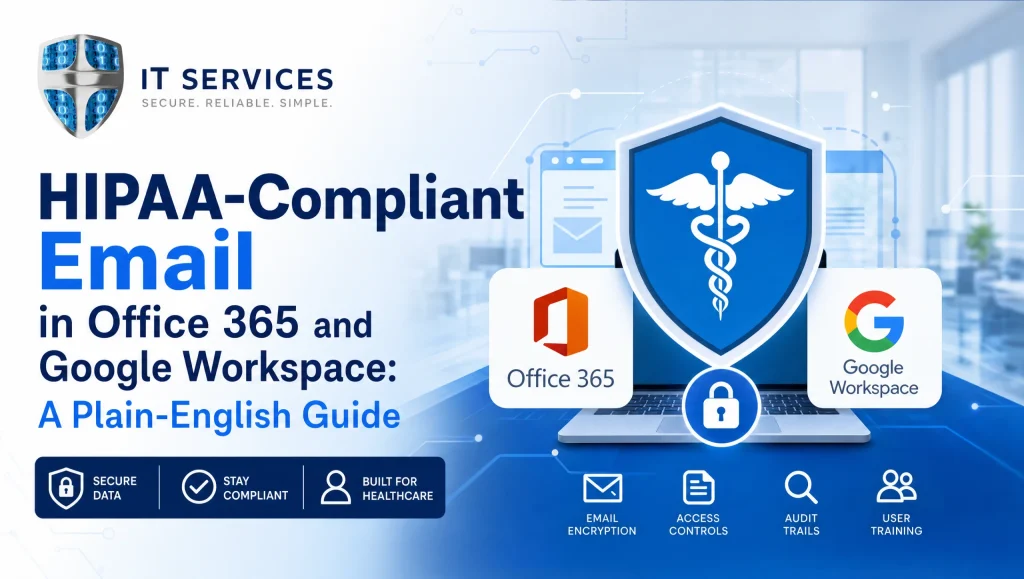
HIPAA Compliant Email in Office 365 and Google Workspace: A Plain‑English Guide
Houston dental and healthcare teams ask us all the time: “Is our email HIPAA compliant?” The short answer: it can be. The longer, more useful answer is what this guide covers—how to configure Office 365 and Google Workspace for HIPAA compliant email with the right BAAs, encryption, security controls, and staff training. If you’re anywhere in Greater Houston—Katy, Sugar Land, or the Medical Center—this practical walkthrough is written for you.
What “HIPAA Compliant Email” Really Means
HIPAA compliant email isn’t a product or a switch. It means your platform is covered by a signed Business Associate Agreement (BAA) and is configured to protect PHI with sensible controls—encryption, MFA, DLP, auditing, and retention—backed by clear policies so staff send PHI only when appropriate and always in a secure way.
Platform vs. Practice Responsibilities
- What Microsoft/Google provide
- Enterprise‑grade security features, including encryption options, malware filtering, and admin controls
- A Business Associate Agreement (BAA) you can accept for covered services
- Logs, auditing, and data retention capabilities
- What your practice must do
- Sign the BAA in Office 365 or the BAA in Google Workspace
- Configure email encryption for PHI (OME/S/MIME or a secure portal)
- Turn on MFA for all users, especially admins and privileged roles
- Enable anti‑phishing, anti‑malware, safe links/attachments
- Create and test DLP rules for PHI patterns
- Set retention, auditing, mobile device management, and incident procedures
- Train staff on when and how PHI can be emailed safely
When Emailing PHI Is Appropriate—and Safer Alternatives
- Appropriate scenarios: care coordination with covered entities that also protect messages; internal communications when controls are enforced; replies to patient emails after proper disclosures. (HHS guidance on emailing patients under HIPAA)
- Safer alternatives:
- Patient portals for scheduling, treatment plans, and billing
- Secure message links that require authentication
- Encrypted file sharing with expiring links instead of attachments
BAAs for Office 365 and Google Workspace
How the BAA Works (and what it doesn’t cover)
- What it does: The BAA makes Microsoft or Google a Business Associate and commits them to safeguard PHI within covered services.
- What it doesn’t do: A BAA alone does not make your email HIPAA compliant. You still need correct configurations, policies, and staff training. It won’t cover third‑party apps or data you move outside the covered environment.
Getting a BAA in Microsoft 365
- Availability: Included with eligible Microsoft 365 plans and services.
- Typical path: In the Microsoft 365 admin/compliance center, review and accept Microsoft’s HIPAA BAA (often included in the Online Services Terms for healthcare).
- Tip: Document acceptance, scope of covered services, and any exclusions; retain a copy with your HIPAA documentation.
Getting a BAA in Google Workspace
- Availability: Available in Google Workspace (not consumer Gmail) via the Admin Console.
- Typical path: Admin Console > Account > Legal & compliance > Review and accept the HIPAA BAA.
- Tip: Confirm which Google services are covered and disable non‑covered services that might touch PHI.
Email Encryption for PHI: Practical Options
Transport‑level encryption (TLS) vs. message‑level encryption
- TLS encrypts the connection between mail servers. It’s table stakes and helpful, but it depends on the recipient’s server supporting TLS. For many patient communications, TLS alone isn’t enough.
- Message‑level encryption protects the message itself, even if it’s forwarded or stored. Use OME, S/MIME, or a secure portal for external recipients.
Office 365 options: Microsoft Purview Message Encryption (OME), S/MIME basics
- OME: Encrypt messages and control access, expiration, and forwarding. Works well with mail flow rules triggered by PHI patterns.
- S/MIME: Strong message encryption and signing, but requires certificate management and recipient support. Best for B2B healthcare partners who already use it.
Google Workspace options: Gmail confidential mode vs. S/MIME, third‑party gateways
- Hosted S/MIME: True message‑level encryption and signing when both parties support it; ideal for B2B clinical partners.
- Confidential mode: Adds access restrictions and expiration for recipients, but it’s not end‑to‑end encryption. Use carefully and reinforce with DLP and other controls.
- Third‑party secure gateways/portals: Useful when you need consistent message‑level encryption for patients who won’t have S/MIME.
Patient communications and secure portals
- For patient‑facing messages (treatment plans, forms, attachments with PHI), default to a secure portal link with MFA or identity verification whenever possible. This gives patients a smooth experience and reduces risk from misaddressed or forwarded emails.
Core Security Controls You Must Turn On for HIPAA Compliant Email
MFA everywhere (admins, users, privileged roles)
- Enforce MFA organization‑wide. Prioritize admins, shared mailboxes with delegate access, and any accounts with elevated permissions.
Strong authentication and conditional access (geography, device)
- In Microsoft 365, use Conditional Access to restrict risky logins (e.g., block outside the U.S. or require compliant devices).
- In Google Workspace, use context‑aware access to control by user, device posture, and IP.
Anti‑phishing, anti‑malware, and safe links/attachments
- Enable advanced phishing protection, safe link rewriting, attachment sandboxing, and spoofing protection.
DLP for PHI patterns (SSN, ICD codes, treatment terms, custom keywords)
- Build policies that detect PHI patterns common to your practice—e.g., insurance ID formats, ICD/CPT codes, and local procedure terms.
- Start in test mode to reduce false positives; then enforce.
Retention, auditing, and legal holds
- Enable mailbox auditing. Configure retention labels or policies to meet medical record policies and legal requirements.
Mobile device management (MDM) and lost device wipe
- Enforce passcodes/biometrics, device encryption, and remote wipe for smartphones and tablets with mailbox access.
Step‑by‑Step: Office 365 HIPAA Compliant Email Setup
Confirm BAA acceptance in Microsoft 365 compliance portal
- Verify the HIPAA BAA is accepted and documented. Note which services are covered.
Enable MFA and conditional access baselines
- Require MFA for all users; enforce stronger policies for admins.
- Create Conditional Access policies to require compliant devices and block risky locations.
Configure OME rules for PHI triggers
- In Exchange mail flow rules, auto‑encrypt outbound messages when DLP detects PHI patterns (e.g., ICD, CPT, insurance IDs).
- Provide users a manual “Encrypt” option in Outlook for edge cases.
Turn on anti‑phishing/anti‑malware presets
- Apply recommended preset security policies in Defender for Office 365 (phishing, spoof, malware, safe links/attachments).
Create DLP policies for PHI and test mode, then enforce
- Use built‑in health identifiers and custom keywords. Start with “audit” or “test” mode.
- Tune exceptions for known workflows (e.g., referrals to specific domains), then switch to enforcement.
Audit, retention, mailbox access controls
- Enable mailbox auditing. Apply retention policies through Microsoft Purview.
- Review shared mailboxes and delegate access; restrict forwarding to personal accounts.
User training and patient disclosure notices
- Train staff to recognize PHI and when to use encryption or portals.
- Update patient notices explaining email risks and the secure options you offer.
Step‑by‑Step: Google Workspace HIPAA Compliant Email Setup
Sign Business Associate Addendum in Admin Console
- Accept the HIPAA BAA for covered services and document it in your HIPAA files.
Enforce 2‑Step Verification and context‑aware access
- Require 2SV for all users; prefer security keys or app‑based authenticators.
- Apply context‑aware rules (device, IP, geolocation) for sensitive access.
Enable hosted S/MIME where appropriate; configure compliance rules
- Turn on hosted S/MIME for users who coordinate with external clinical partners that support it.
- Set routing and compliance rules to enforce encryption or route via a secure gateway when needed.
Set DLP for PHI patterns; test and enforce
- Create DLP rules for common PHI identifiers and your practice’s keywords.
- Start with “monitor” actions, then enforce encryption or quarantine once tuned.
Configure phishing/malware defenses (Gmail security sandbox options)
- Enable enhanced phishing protection, spoofing controls, and attachment scanning/sandboxing.
- Block automatic forwarding to personal addresses.
Vault retention/auditing; mobile management
- Use Google Vault for retention, eDiscovery, and audit logs.
- Enforce mobile management policies: screen lock, device encryption, and remote wipe.
User training and patient disclosure notices
- Train staff on Gmail HIPAA settings and how to send PHI securely (S/MIME, secure links).
- Update patient notices with email options and secure portal availability.
Common Pitfalls (and How to Fix Them)
Assuming TLS alone is enough
- Fix: Use message‑level encryption (OME/S/MIME) or secure portals when emailing external recipients, especially patients.
Skipping DLP testing, over‑blocking care coordination
- Fix: Start DLP in test mode. Review weekly, add exceptions for trusted referral domains, then enforce.
Personal devices and unencrypted mobile access
- Fix: Require MDM enrollment, device encryption, and the native Outlook/Gmail apps with modern auth; deny legacy protocols.
Third‑party apps with no BAA or excessive scopes
- Fix: Audit OAuth apps and add‑ons. Allow only approved apps with a signed BAA and least‑privilege scopes.
No incident response plan for misdirected emails
- Fix: Define a quick response checklist—notify your privacy officer, attempt recall/secure follow‑up, log the event, assess breach risk, and document actions.
Myth vs. Fact: Quick Reality Check
- Myth: “Once I sign a BAA, my email is HIPAA compliant.”
- Fact: The BAA enables compliance; your configurations, policies, and training make it real.
- Myth: “Gmail confidential mode is the same as encryption.”
- Fact: It adds restrictions but is not end‑to‑end encryption. Use S/MIME or a secure portal for PHI when needed.
- Myth: “MFA slows the front desk too much.”
- Fact: With app‑based prompts or security keys, MFA adds seconds—and stops the bulk of account takeovers.
Houston‑Specific Considerations and Support
- Mixed systems across partners: Many Houston hospitals and specialists run different platforms. Establish trusted domains and shared encryption methods (S/MIME or secure portals) to keep referrals moving without delays.
- After‑hours demands: Practices in Katy and Sugar Land often need changes outside business hours. Our 24/7 monitoring and rapid remote response help reduce downtime and last‑minute scrambles.
- End‑to‑end help: From BAA acceptance to OME/S/MIME, DLP tuning, and documentation, CompTSS handles the full HIPAA compliant email configuration—plus backups and disaster recovery to keep you resilient. Explore our Houston dental and healthcare IT support at https://comptss.com/.
Our hands‑on experience
In recent Houston rollouts, the biggest wins consistently came from enabling MFA for every mailbox, adding two targeted DLP rules for PHI terms common at the front desk, and switching patient‑facing emails to portal‑based secure links. Support tickets dipped, and staff told us they ran into far fewer “blocked email” surprises during busy hours.
Quick Checklist You Can Use Today
Office 365
- Confirm and document BAA acceptance
- Enforce MFA for all; apply Conditional Access for admins and risky sign‑ins
- Turn on Defender presets: anti‑phishing, malware, safe links/attachments
- Configure OME for PHI triggers; give users a manual Encrypt option
- Create DLP policies (SSN/insurance IDs/ICD/CPT/custom terms); test then enforce
- Enable mailbox auditing; apply retention with Purview
- Require MDM for mobile devices; block legacy authentication and auto‑forwarding
- Train users on PHI handling, patient notices, and secure portal use
Google Workspace
- Accept the HIPAA BAA in Admin Console; document it
- Require 2‑Step Verification for all; enable context‑aware access
- Enable hosted S/MIME where partners support it; set encryption/compliance rules
- Create DLP rules for PHI patterns; start in monitor mode, then enforce
- Turn on enhanced phishing/malware protections; restrict auto‑forwarding
- Use Vault for retention/auditing; enforce mobile management and remote wipe
- Train staff on Gmail HIPAA settings and secure portal workflows
Where to go next
- Need a deeper look? Get a HIPAA‑focused cybersecurity audit to validate controls and close gaps: https://comptss.com/cybersecurity-audit-ultimate-cybersecurity-audit
- Strengthen resilience with secure cloud backup for PHI and tested recovery: https://comptss.com/cloud-backup-unlock-it-success-cloud-backup-sys
- Broaden your roadmap with HIPAA and EHR best practices: https://comptss.com/hipaa-compliance-unlocking-healthcare-it-hipaa
- Build incident readiness alongside secure email with ransomware recovery planning: https://comptss.com/ransomware-recovery-master-ransomware-recovery
- For ongoing advice, see our healthcare IT support tips: https://comptss.com/it-tips
Conclusion
HIPAA compliant email isn’t a single checkbox—it’s the combination of a signed BAA, the right encryption for PHI, layered security controls, and clear staff policies. Configure carefully, test DLP before enforcing, and default to secure portals for patient communications. If you’re a dental or healthcare practice in the Houston area and want a quick, practical assessment—or hands‑on setup and documentation—CompTSS can help end to end with local expertise and 24/7 support through our Houston-focused services at https://comptss.com/.
Image suggestions
- Screenshot concept: Admin settings overview — alt: HIPAA compliant email setup in Office 365
- Diagram: Encryption flow — alt: HIPAA compliant email encryption for PHI diagram
- Mobile device policy screen — alt: HIPAA compliant email mobile security settings
Frequently Asked Questions
What makes email HIPAA compliant in Office 365 or Google Workspace?
Short answer: A signed BAA plus correct configurations, encryption for PHI, layered security controls, and staff training.
Expanded answer: HIPAA compliant email isn’t a product. It requires accepting the vendor’s BAA, enabling message‑level encryption for PHI when appropriate, turning on MFA, anti‑phishing/malware, DLP, auditing, and retention, and training staff on when to use secure portals versus email.
Do I need a BAA for HIPAA compliant email, and where do I accept it?
Short answer: Yes. Accept it in the Microsoft 365 compliance/admin center or in Google Workspace Admin Console.
Expanded answer: In Microsoft 365, the HIPAA BAA is included with eligible plans and accepted via the compliance/admin center (document the scope and any exclusions). In Google Workspace, accept the HIPAA BAA under Admin Console > Account > Legal & compliance. A BAA enables compliance—but your configurations and policies make it real.
Is TLS enough to protect PHI over email?
Short answer: No. Use message‑level encryption or a secure portal for external recipients, especially patients.
Expanded answer: TLS only encrypts the connection between mail servers and depends on the recipient’s server. For PHI, use Microsoft Purview Message Encryption (OME), S/MIME, or a secure portal so the message stays protected even if forwarded or stored elsewhere.
When should we use message‑level encryption vs. a secure portal?
Short answer: Use encryption for trusted B2B partners; use a secure portal for most patient‑facing PHI.
Expanded answer: For covered entities or partners that support S/MIME/OME, message‑level encryption works well. For patients, default to portal‑based secure links with identity verification or MFA. Portals reduce risk from misaddressed emails, forwarding, and attachments.
Which Microsoft 365 encryption option should we choose for PHI?
Short answer: Start with OME for broad external use; add S/MIME for partners who already support it.
Expanded answer: OME integrates with DLP and mail flow rules and doesn’t require certificates for recipients. S/MIME offers strong encryption/signing but needs certificate management and recipient support—best for established clinical partners.
Are Gmail confidential mode and hosted S/MIME HIPAA friendly?
Short answer: Hosted S/MIME is; confidential mode isn’t end‑to‑end encryption and should be used carefully.
Expanded answer: Google’s hosted S/MIME provides true message‑level encryption/signing when both sides support it. Confidential mode adds access controls and expiration but doesn’t equal end‑to‑end encryption. Reinforce Gmail confidential mode with DLP, or use S/MIME/secure gateways for PHI.
What security controls must we enable to keep email HIPAA compliant?
Short answer: MFA, phishing/malware protections, DLP for PHI, auditing/retention, and mobile management.
Expanded answer: Enforce MFA for all users (especially admins), enable advanced anti‑phishing/malware with safe links/attachments, create DLP rules for PHI identifiers (SSN, insurance IDs, ICD/CPT), turn on mailbox auditing and retention, and require MDM with device encryption and remote wipe.
How should we handle patient emails that already contain PHI?
Short answer: Reply securely and guide patients to your portal.
Expanded answer: After disclosures, reply using message‑level encryption or send a secure portal link instead of attachments. Document the workflow in policy, and train staff to move PHI conversations to the portal for ongoing communication.
What common pitfalls cause HIPAA email gaps—and how do we fix them?
Short answer: Relying on TLS alone, skipping DLP testing, unmanaged mobile devices, unvetted third‑party apps, and no incident plan.
Expanded answer: Fix by enforcing message‑level encryption/portals, starting DLP in test mode then enforcing, requiring MDM with modern auth, allowing only BAA‑covered/OAuth‑scoped apps, and documenting a misdirected‑email response (notify privacy officer, secure follow‑up, log and assess).
How can CompTSS help Houston practices set up HIPAA compliant email?
Short answer: We handle end‑to‑end setup—BAA acceptance, OME/S‑MIME, DLP, training, and documentation—with 24/7 monitoring and fast local support.
Expanded answer: For dental and healthcare teams across Houston, Katy, and Sugar Land, we configure Microsoft 365 or Google Workspace for HIPAA compliant email, tune DLP to your workflows, set retention/auditing, secure mobile access, and train staff. Explore our Houston IT support: https://comptss.com/. For deeper audits or resilience, see our cybersecurity audit and cloud backup pages: https://comptss.com/cybersecurity-audit-ultimate-cybersecurity-audit and https://comptss.com/cloud-backup-unlock-it-success-cloud-backup-sys.
Our hands‑on experience from recent Houston rollouts
Short answer: MFA everywhere, two targeted DLP rules, and portal‑first for patient messages deliver quick wins.
Expanded answer: We’ve consistently seen fewer blocked‑email surprises and smoother front‑desk workflows after enabling MFA for all mailboxes, adding two PHI‑specific DLP rules common to intake and billing, and shifting patient attachments to portal links with identity verification.