BYOD Policy for Healthcare in Houston Dental & Medical Offices
BYOD Policy for Healthcare in Houston Clinics: Practical Policies That Keep PHI Safe
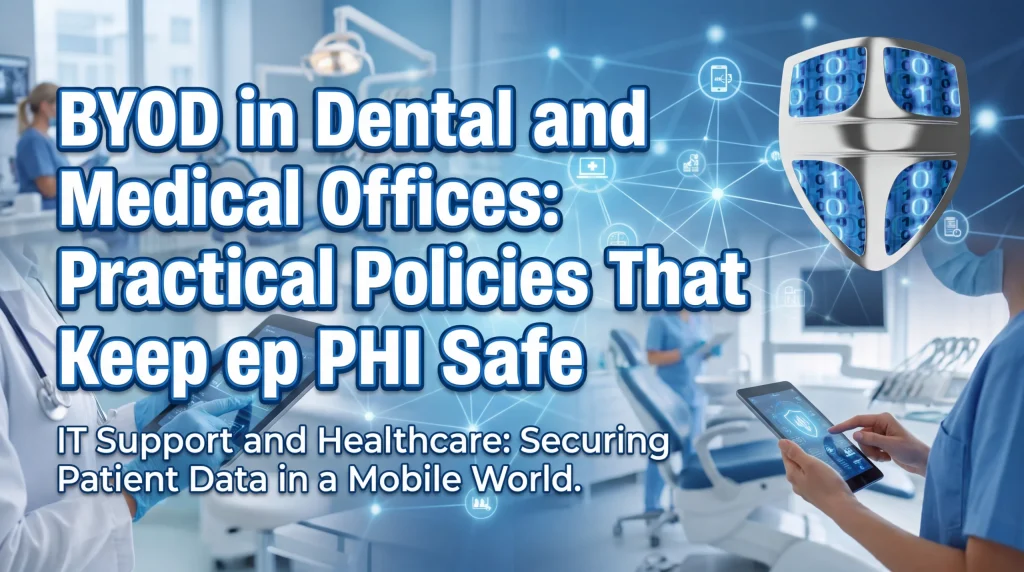
Smartphones are part of everyday patient care now—texting a provider, checking EHR messages, referencing x‑rays, and handling insurance emails often happens on staff phones or tablets. That same convenience can expose protected health information (PHI) if a device is lost, a messaging app autosaves photos to a personal cloud, or someone connects over risky Wi‑Fi. This guide lays out a BYOD policy for healthcare that keeps PHI safe without slowing care. It’s a practical playbook shaped by real Houston‑area dental and medical workflows, showing exactly where mobile device management fits and how to keep a clinic smartphone policy simple, enforceable, and HIPAA‑aligned.
What a BYOD Policy for Healthcare Must Cover
- Purpose, scope, and PHI definition
Open with a clear purpose: empower clinical efficiency while protecting PHI and complying with HIPAA. Define PHI in everyday terms—any information that can identify a patient plus health or payment details. That includes names in texts, x‑ray thumbnails, appointment notes, imaging snapshots, and insurance photos. - Who’s in scope (clinical staff, front desk, contractors)
List all roles permitted to use personal devices for work: dentists, hygienists, physicians, nurses, assistants, front desk, billing, and authorized contractors such as on‑call specialists. Leadership should understand that anyone accessing PHI must follow the same rules—no exceptions based on role or seniority. - Devices, apps, and data types included
Spell out device types (iOS/Android smartphones and tablets) and supported operating systems. List business apps in scope (secure messaging, EHR companion apps, email, imaging viewers) and data types (PHI in text, images, email, and app data). If photos are allowed, require an approved secure‑capture app—not the device’s native camera.
HIPAA Mobile Compliance Basics (Mapped to the Security Rule)
- Administrative safeguards: policy, training, sanctions
Create and maintain a written policy. Train staff during onboarding and at least annually. Document sanctions for noncompliance (for example, removal of BYOD privileges or HR review). Assign a BYOD coordinator or privacy officer to manage approvals and audits. For a deeper refresher on the HIPAA Security Rule, see HIPAA Security Rule essentials for clinics: https://comptss.com/hipaa-compliance-unlocking-healthcare-it-hipaa - Physical safeguards: device control, screen privacy, lost/stolen processes
Require screen privacy in shared spaces and operatories, use screen protectors where practical, and set auto‑lock timeouts. Document an exact process for lost or stolen devices: who to notify, within what timeframe, and how to trigger a remote lock or wipe of clinic data. - Technical safeguards: encryption, MFA, access controls, audit logs
Require full‑device encryption, strong passcodes/biometrics, and multi‑factor authentication (MFA) for email, EHR, and cloud apps. Keep PHI confined to approved apps. Turn on logging where available to record access and changes, and review those logs on a set schedule with documented findings.
Secure BYOD Foundations Every Clinic Should Require
- Mandatory device lock, auto‑timeout, and biometrics
Set a minimum 6‑digit PIN (or stronger), enable Face ID/Touch ID/Android biometrics, and require auto‑lock after 1–3 minutes. Short timeouts reduce shoulder surfing and unattended‑device risk in busy operatories and front offices. - Device encryption and separate work profiles/containers
Mandate full‑device encryption and separate work from personal data with a managed work profile or container. This boundary lets you lock or wipe clinic data without touching personal apps, photos, or texts—a cornerstone of secure BYOD that builds trust. - MFA for email/EHR, password managers, and phishing‑resistant tips
Turn on MFA for Microsoft 365/Google Workspace, EHR portals, and any cloud service that holds PHI. Encourage a reputable password manager to prevent reuse. Teach staff to spot phishing prompts and fake login pages, and to report anything suspicious immediately. - Patch management and approved app stores only
Require current OS versions, regular security updates, and only approved app stores (Apple App Store/Google Play). Block or deny access from jailbroken or rooted devices.
Mobile Device Management (MDM) That Respects Privacy
- MDM vs. MAM vs. work profile—what to choose in clinics
– MDM manages the entire device: best for corporate‑owned devices.
– MAM (mobile application management) controls only specific apps: a lighter footprint for personal devices.
– Work profile/container separates clinic data on personal devices: a practical middle ground for healthcare BYOD.Many Houston dental and medical offices choose MAM or a work profile for personal phones to preserve privacy while meeting HIPAA mobile compliance.
- Minimum MDM policies: PIN strength, wipe on fail, jailbreak/root detection
Enforce minimum PIN length/complexity, device encryption, auto‑lock, and “wipe on fail” after a reasonable number of bad attempts. Block access from jailbroken or rooted devices. - Remote lock/wipe of clinic data only; personal data boundaries
Configure remote lock/wipe to apply only to the work profile or managed apps. Communicate clearly that the clinic cannot access personal photos, texts, or location history. Transparency reduces resistance and improves adoption. - Inventory, compliance checks, and alerting
Maintain an inventory of enrolled devices and device owners. Automate compliance checks (encryption, OS version, MFA) and send alerts for devices that fall out of compliance so you can remediate quickly without disrupting care.
Clinic Smartphone Policy: Clear Dos and Don’ts
- Photos and messaging: approved apps, no PHI in native SMS
– Do: Use clinic‑approved secure messaging and photo capture apps with encryption and automatic in‑app storage.
– Don’t: Send PHI via native SMS/iMessage or store patient photos in the personal camera roll or cloud sync. - Email and cloud storage: allowed uses and automatic encryption
– Do: Access clinic email only in managed apps with MFA and mobile device management controls enabled; use built‑in encryption when emailing PHI according to your clinic’s policy.
– Don’t: Forward PHI to personal email or save files to personal cloud drives. - Bluetooth, Wi‑Fi, and hotspot safety in operatories and at the front desk
– Do: Connect to the clinic’s secure Wi‑Fi; keep Bluetooth off unless needed for clinical peripherals; always verify the device name you’re pairing.
– Don’t: Use public Wi‑Fi for PHI or unapproved hotspots in imaging rooms—these can interfere with equipment and increase risk in multi‑tenant medical buildings. - Handling lost/stolen devices and incident reporting timelines
– Report immediately—within one hour of realizing a device is missing.
– The BYOD coordinator triggers remote lock/wipe of clinic data.
– Change passwords for email/EHR; review sign‑in logs for suspicious activity.
– Document the incident and outcomes.
Practical Onboarding, Training, and Offboarding
- User consent forms and attestation
Have staff sign a BYOD consent and privacy acknowledgment explaining what the clinic can and cannot see or control, along with their responsibilities for safeguarding PHI. - Fast start: enroll device in MDM, verify encryption, MFA setup
During onboarding, enroll the device, confirm encryption and passcode policy, set up MFA, and install approved clinic apps. Walk through secure messaging and photo capture so no one improvises with native apps. - Quarterly refresher training and simulated phishing
Keep refreshers short and practical—15–20 minutes per quarter. Include simulated phishing to reinforce good habits and identify where extra coaching helps. - Offboarding: remove clinic data, disable access, document
When staff leave, revoke access to email/EHR, remove work profiles, and confirm logs show successful deprovisioning. Document the timeline and steps in the personnel file.
Tested Backup and Disaster Recovery for Mobile Data Paths
- Ensure PHI never lives only on a personal device
Any PHI created or received on mobile must sync to a clinic system of record (EHR, secure repository) and never remain solely on a personal phone. This prevents data loss, speeds audits, and simplifies incident response. - Email retention, EHR access logs, and secure backups
Set email retention policies, keep EHR access logs, and back up systems that receive mobile data. Test recovery on a schedule so there are no surprises. For deeper guidance, explore secure backups and tested recovery: https://comptss.com/cloud-backup-unlock-it-success-cloud-backup-sys - Tabletop exercises for mobile incidents and ransomware
Run short exercises: a lost phone, a stolen tablet, a mis‑sent message, or mobile‑led ransomware entry. Confirm you can respond, restore, and notify according to policy. For broader planning, see ransomware and incident response planning: https://comptss.com/ransomware-recovery-master-ransomware-recovery
Houston Considerations: Network Realities in Local Clinics
- Guest vs. clinical Wi‑Fi separation for multi‑suite practices
In many Houston medical buildings—from the Energy Corridor to Sugar Land—guest networks are shared across tenants. Keep a fully separated, encrypted clinical SSID with hidden broadcast and strong authentication. Restrict BYOD devices to a secured, non‑EHR VLAN with limited access unless they’re in a managed work profile that needs app‑level EHR access. - Coverage in operatories and imaging rooms without shortcuts
Lead‑lined operatories and imaging rooms can degrade signals. Avoid relying on risky repeaters or ad‑hoc hotspots near equipment. Use properly placed, shield‑aware access points and coordinate channels to avoid interference common in multi‑tenant sites. - Support across common dental software (Dentrix, Eaglesoft, Open Dental, Dexis, Sidexis)
Mobile access should complement—not replace—your workstation workflows. Verify that your mobile configurations work cleanly with Dentrix, Eaglesoft, Open Dental, Dexis, and Sidexis/Sirona viewers your teams rely on. If you need dedicated help, CompTSS offers dental software support for Dentrix and Dexis: https://comptss.com/it-solutions-revolutionize-dental-practice-it-s
Myth vs. Fact: BYOD in Clinics
- Myth: “HIPAA bans personal phones.”
Fact: HIPAA allows BYOD if you implement appropriate administrative, physical, and technical safeguards. - Myth: “MDM gives IT full access to my personal content.”
Fact: Properly configured MAM/work profiles manage only clinic apps and data—not personal photos, texts, or social media. - Myth: “Secure messaging is overkill for short updates.”
Fact: Even a patient’s name paired with a condition is PHI; approved secure messaging is the safest default.
Real‑World Note from the Field
At a Houston dental group, we enrolled staff iPhones and Androids during lunch‑and‑learns, guided everyone to toggle a work profile, and set MFA for email and the imaging viewer. A week later, an assistant lost her phone at a grocery store. We remotely wiped the work profile within minutes—her personal photos and texts were untouched, and she was back online with a new device the next day.
Quick BYOD Policy Template (Copy and Adapt)
- Policy statement and scope
– Our clinic allows limited use of personal smartphones and tablets for work to improve care coordination while protecting PHI under HIPAA.
– This policy applies to all workforce members and contractors who access PHI on mobile devices.
– Only approved devices, apps, and networks may be used; violations may result in revoked access and HR action. - Technical controls checklist
– Device passcode/biometric required; auto‑lock ≤ 3 minutes.
– Full‑device encryption enabled.
– Managed work profile or MAM on all BYOD devices.
– MFA required for email, EHR, and cloud apps.
– Secure messaging and secure photo capture apps only; no PHI in SMS or personal camera roll.
– OS and app updates applied promptly; no jailbroken/rooted devices.
– Approved app stores only; install clinic‑approved apps.
– Logging/audit enabled where available; periodic compliance checks. - Incident response steps for mobile
– Report lost/stolen or suspected compromise within 1 hour to the BYOD coordinator/IT.
– Remotely lock or wipe clinic data; change passwords and invalidate tokens.
– Review access logs; determine if PHI exposure occurred.
– Document actions taken and outcomes; notify leadership/privacy officer.
– Reinforce training and update safeguards if gaps are found. - Annual review and approval
– This policy is reviewed at least annually and after any major incident or technology change.
– Approved by: [Clinic Leader/Privacy Officer], Date: [MM/DD/YYYY]
When to Get Help
- Signs you need MDM support and a HIPAA risk assessment
– You can’t confirm which devices access PHI or whether they’re encrypted.
– Staff use mixed messaging apps and personal email for patient info.
– You lack a reliable way to remotely remove clinic data from personal devices.
– You’ve had a lost or stolen device and aren’t sure what was exposed.
CompTSS helps Houston‑area providers implement secure BYOD quickly. We deliver HIPAA‑focused cybersecurity including risk assessments, encryption, MFA, email filtering, and patching; 24/7 monitoring; automated encrypted backups with tested disaster recovery; and fast remote response with on‑site support as needed. If you’re ready for a structured review, start with a HIPAA risk assessment and endpoint protection: https://comptss.com/cybersecurity-audit-ultimate-cybersecurity-audit. For everyday issues like enrollment hiccups or phishing cleanups, our remote helpdesk is here: https://comptss.com/remote-helpdesk-unlocking-it-support-remote. To see the broader picture of HIPAA‑aligned IT for clinics, visit HIPAA‑compliant IT support for Houston healthcare and dental practices: https://comptss.com/
Short Definition
A BYOD policy for healthcare is a written set of rules and technical controls that let staff use personal phones and tablets for work while keeping PHI protected under HIPAA through encryption, access control, device management, and clear usage boundaries.
Early Wins You Can Implement This Week
- Enroll all staff devices in MAM/work profiles and verify encryption.
- Require MFA for clinic email and EHR mobile access.
- Switch to a clinic‑approved secure messaging and photo capture app.
- Block PHI in native SMS and personal email via policy and training.
- Run a 20‑minute lost‑device tabletop exercise with your team.
Where CompTSS Fits in Your Secure BYOD Plan
- We specialize in dental and healthcare workflows, including Dentrix, Eaglesoft, Open Dental, Dexis, and Sidexis/Sirona—so mobile policies align with your daily tools.
- Our flat‑rate Assurance plan scales by workstation and includes proactive monitoring, patching, and support to keep devices compliant without micromanagement.
- For cloud and recovery strategies that backstop mobile workflows, see secure backups and tested recovery: https://comptss.com/cloud-backup-unlock-it-success-cloud-backup-sys
Conclusion
With the right BYOD policy for healthcare, you can protect PHI and keep teams moving fast—no more risky texts or unsanctioned photo storage. Start with strong basics (encryption, MFA, MAM/work profiles), add clear clinic smartphone policy rules, and practice your response to lost or stolen devices. If you’re in Houston, Katy, or Sugar Land and want an experienced partner to implement secure BYOD without slowing care, CompTSS is ready to help.
Frequently Asked Questions
What is a BYOD policy for healthcare?
Short answer: It’s a written set of rules and controls that let staff use personal devices for work while keeping PHI protected under HIPAA.
Expanded answer: A BYOD policy for healthcare defines who can use personal smartphones/tablets, what apps and data are in scope, and the safeguards required (encryption, MFA, access controls, device management). It sets clear usage boundaries so PHI stays in approved apps and systems—never in personal texts, photo rolls, or cloud drives.
Are personal phones allowed under HIPAA?
Short answer: Yes—if proper administrative, physical, and technical safeguards are in place.
Expanded answer: HIPAA does not ban personal devices. It requires you to manage risk. That means written policy and training, screen privacy and lost-device steps, and technical controls like full-device encryption, strong passcodes/biometrics, MFA, and approved secure messaging and photo capture apps.
What should a clinic smartphone policy include?
Short answer: Scope, allowed devices and apps, PHI rules, required security settings, and incident steps.
Expanded answer: A clinic smartphone policy should name who’s in scope (clinical, front desk, contractors), supported devices/OS versions, approved apps (secure messaging, EHR companions, imaging viewers), required settings (PIN/biometrics, encryption, auto-lock), and do/don’t rules for photos, messaging, email, Wi‑Fi/Bluetooth. It should also define how to report and respond to lost or stolen devices within a specific timeline.
MDM vs. MAM vs. work profile—what’s best for a Houston clinic?
Short answer: For personal phones, most clinics choose MAM or a work profile; MDM suits clinic-owned devices.
Expanded answer: MDM manages the whole device (ideal for corporate-owned). MAM controls only specific apps. Work profiles/containerization separate clinic data from personal data. Many Houston practices pick MAM or a work profile to meet HIPAA mobile compliance while keeping staff privacy intact.
How do we keep PHI out of personal photos and texts?
Short answer: Use clinic-approved secure messaging and secure photo capture apps; block PHI in native SMS and camera rolls.
Expanded answer: Require an approved secure-capture app and prohibit storing PHI in the personal camera roll or syncing to personal clouds. Ban PHI over native SMS/iMessage. Keep PHI confined to managed apps that encrypt and store data in your EHR or secure repository instead of the device.
What’s the process if a BYOD device is lost or stolen?
Short answer: Report within one hour, remote lock/wipe clinic data, change passwords, and review logs.
Expanded answer: Your policy should list exactly who to notify and how. The BYOD coordinator triggers a remote lock or wipes only the work profile or managed apps, then forces password changes and MFA re-enrollment. Audit sign-in logs to check for suspicious access. Document the incident, actions taken, and outcomes.
How do we respect staff privacy while enforcing security?
Short answer: Use MAM/work profiles, manage only clinic data, and be transparent about what IT can see.
Expanded answer: Configure remote lock/wipe to target only the managed work profile. Do not access personal photos, texts, or location history. Clearly explain these boundaries in a BYOD consent and privacy acknowledgment. Transparency boosts adoption and reduces resistance.
What minimum technical controls should every clinic require?
Short answer: Encryption, PIN/biometrics with short auto-lock, MFA, updates, approved stores, and jailbreak/root blocks.
Expanded answer: Require full-device encryption, minimum 6-digit PIN, biometrics, auto-lock at 1–3 minutes, MFA for email/EHR/cloud apps, current OS and app patches, and only the Apple App Store/Google Play. Block jailbroken or rooted devices and set “wipe on fail” after too many bad passcode attempts.
How should mobile data be backed up without copying PHI to personal clouds?
Short answer: Ensure PHI syncs to the EHR or secure systems of record—never stored only on a personal device.
Expanded answer: Configure mobile apps so PHI flows into the EHR, secure repositories, or managed email with proper retention. Back up and test recovery on the systems receiving that data—not on staff phones. For deeper guidance, see secure backups and tested recovery: https://comptss.com/cloud-backup-unlock-it-success-cloud-backup-sys
What training and enforcement keep a BYOD program effective?
Short answer: Onboarding with device enrollment and MFA, short quarterly refreshers, simulated phishing, and clear sanctions.
Expanded answer: During onboarding, enroll devices, verify encryption/PIN, and set up MFA and approved apps. Run 15–20 minute quarterly refreshers and light phishing simulations. Document sanctions for noncompliance, such as revoking BYOD access or HR review. Assign a BYOD coordinator to oversee audits and improvements.
Will BYOD work with Dentrix, Eaglesoft, Open Dental, Dexis, and Sidexis?
Short answer: Yes—BYOD should complement, not replace, workstation workflows; test configurations with your tools.
Expanded answer: Most clinics use mobile for quick lookups, secure messaging, and capturing images that route into the EHR or imaging systems. Verify device, app, and network settings so mobile access cleanly supports Dentrix, Eaglesoft, Open Dental, Dexis, and Sidexis/Sirona. If you need help, see: https://comptss.com/it-solutions-revolutionize-dental-practice-it-s
Any Houston-specific tips for Wi‑Fi and building realities?
Short answer: Separate guest and clinical Wi‑Fi, avoid public networks, and design coverage for operatories and imaging rooms.
Expanded answer: In multi-tenant buildings from the Energy Corridor to Sugar Land, keep a fully separated, encrypted clinical SSID and restrict BYOD to a secured VLAN unless a managed profile needs app-level EHR access. Avoid ad-hoc hotspots near imaging equipment; place shield-aware access points to handle lead-lined rooms and reduce interference.
Real-world note from the field
During a lunch-and-learn at a Houston dental group, we enrolled iPhones and Androids into a work profile, enabled MFA for email and the imaging viewer, and walked staff through the secure photo app. A week later, an assistant lost her phone. We remotely wiped only the work profile—her personal photos and texts stayed intact—and she re-enrolled a replacement device the next day with no impact on patient care.