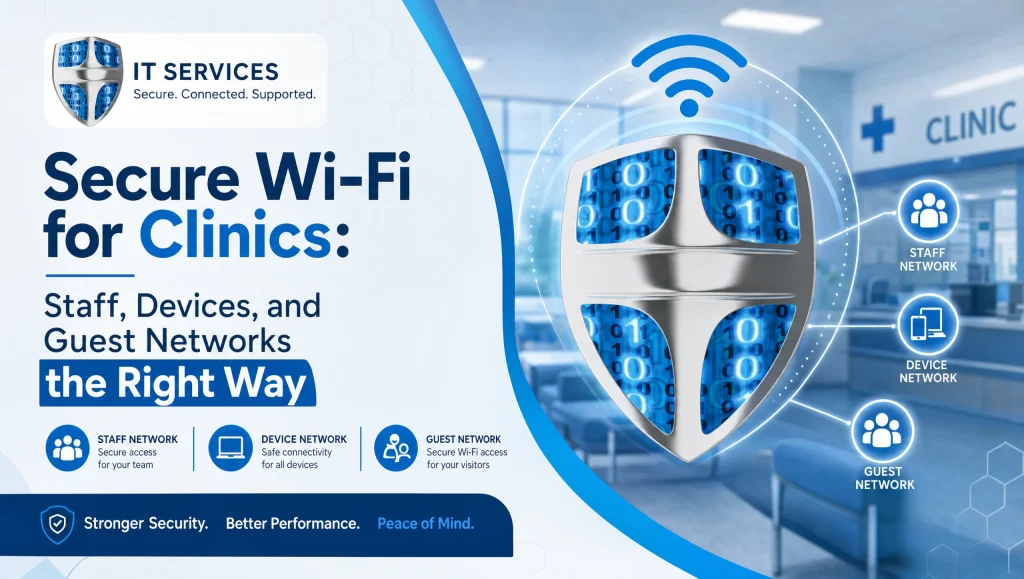
Secure Wi‑Fi for Healthcare: Staff, Device, and Guest Networks the Right Way
Secure Wi‑Fi for Healthcare: Segment Staff, Devices, and Guests the Right Way
In Houston clinics and dental offices, strong, reliable wireless isn’t just convenient—it’s essential to protect PHI and keep daily workflows moving. Secure Wi‑Fi for healthcare means designing the network so staff, clinical devices, and guests can all connect without colliding with each other or putting data at risk. The backbone is WPA3, smart network segmentation, and guest Wi‑Fi isolation—supported by continuous monitoring and practical access controls.
What “Secure Wi‑Fi for Healthcare” Really Means
HIPAA context without the legalese
HIPAA won’t tell you which brand of access point to buy or which checkbox to click. It requires you to protect PHI with reasonable and appropriate safeguards. In a wireless context, that translates to encrypting traffic, knowing exactly who or what is connecting, limiting access to the minimum necessary, and keeping the right records so you can investigate and respond when something looks off. For a bigger picture on aligning controls to HIPAA, see our Houston‑focused overview of healthcare IT and compliance: https://comptss.com/hipaa-compliance-unlocking-healthcare-it-hipaa
The three core goals: confidentiality, integrity, availability
- Confidentiality: Only the right users and devices reach sensitive systems and data—enforced by encryption and access controls.
- Integrity: Data remains accurate and unaltered—no rogue APs, no unmanaged devices pushing malware or changing settings.
- Availability: Imaging, EHR, and dental office Wi‑Fi stay stable and fast, both during clinic hours and for after‑hours processes.
Common wireless risks in clinics and dental offices
- A single flat Wi‑Fi network shared by staff, devices, and guests
- Shared pre‑shared keys (PSKs) that never change
- Legacy security (WEP or open networks) or WPS still enabled
- Unpatched access points (APs) and controllers
- Guest networks that can “see” internal subnets
- Clinical devices granted broad, unnecessary network access
Design Your Wi‑Fi the Right Way: Separate SSIDs and Networks
Staff Wi‑Fi (EAP/enterprise auth) vs. Device Wi‑Fi (MAC‑bound or certificate‑based)
- Staff SSID: Use WPA3‑Enterprise (or WPA2‑Enterprise if you must support older devices) with 802.1X/RADIUS. Issue per‑user credentials so you can revoke access the moment someone leaves the practice.
- Device SSID: Put clinical devices—imaging sensors, scanners, tablets—on a separate SSID. Enroll them with certificates or, if needed, MAC binding (certificates are the stronger choice) so unknown devices can’t connect.
- Why separate: Staff endpoints and clinical devices have different risk profiles and application needs. Segmentation lets you tailor firewall rules and QoS for each group.
Guest Wi‑Fi isolation: captive portal, client isolation, bandwidth limits
- Captive portal: Require a quick terms acceptance or simple code. Guests should never be able to reach internal apps.
- Client isolation: Block guest devices from talking to each other or to any wired LAN resources.
- Bandwidth limits: Cap guest throughput so imaging transfers and EHR sessions don’t suffer.
VLANs and network segmentation: mapping SSIDs to VLANs for PHI safety
- Map each SSID to its own VLAN: Staff VLAN, Clinical Device VLAN, Guest VLAN.
- Enforce least‑privilege rules between VLANs on your router/firewall.
- Keep EHR/dental software servers on protected subnets and only allow the specific traffic required from staff or device VLANs.
Security Settings That Matter (WPA3, Encryption, and Access Control)
WPA3‑Enterprise vs. WPA2‑Enterprise (when and how to upgrade)
- Target WPA3‑Enterprise first. It adds stronger cryptography and better protection against key‑guessing attacks.
- If certain legacy devices force WPA2‑Enterprise, plan a phased hardware refresh and set a firm retirement date. Avoid WPA2‑PSK for any user or device that touches PHI.
802.1X/RADIUS with per‑user credentials
- Use 802.1X with your identity directory (Azure AD with RADIUS sync or on‑prem AD with NPS) for per‑user authentication.
- Benefits include rapid offboarding, individual accountability, and the end of risky shared keys.
Disable WPS, hide management interfaces, rotate keys, use strong ciphers
- Turn off WPS—it creates more risk than convenience.
- Limit management access to a dedicated management VLAN and require VPN plus MFA for any remote administration.
- Rotate any remaining PSKs on a set schedule; use strong EAP methods and modern ciphers like AES‑GCM.
- Keep admin accounts separate from user accounts and log all admin actions.
Least‑privilege firewall rules between VLANs
- Staff VLAN: Allow only the ports and destinations needed for EHR, dental imaging, and approved cloud services. Block lateral movement into device and server subnets unless explicitly required.
- Device VLAN: Permit only the exact services your Dexis/Sidexis/Sirona or other clinical devices need to reach their application servers or PACS. Block internet access for devices that don’t require it.
- Guest VLAN: Deny all access to internal subnets. Allow only outbound web/DNS with DNS filtering.
Protect Clinical and Dental Devices on Wi‑Fi
Segregate imaging sensors, scanners, Dexis/Sidexis/Sirona devices
- Group these endpoints on the Device VLAN/SSID. Apply policies that prioritize latency‑sensitive imaging traffic, while preventing any direct access from staff laptops or guests.
- Keep discovery/protocol allowances as narrow as vendors require; turn off everything else.
Allow only required ports to EHR/dental apps (Dentrix, Eaglesoft, Open Dental)
- Build allow‑lists using vendor documentation and confirm them with testing in your environment.
- If devices sync with Dentrix, Eaglesoft, or Open Dental servers, permit just the required ports and hosts. Log and review any deny hits to spot misconfigurations quickly.
- Coordinate with your dental software integrators to validate end‑to‑end workflows after each change.
Patch management and secure firmware updates for APs and controllers
- Schedule quarterly updates (or follow vendor guidance) for APs and controllers.
- Use signed firmware from trusted sources. Back up configs first, then update during maintenance windows.
- Track end‑of‑support dates for APs/controllers, especially in older buildings where coverage can be tricky.
Guest Network Done Right (Without Touching PHI)
Client isolation, DHCP scope separation, and no LAN bridging
- Place guests in a dedicated DHCP range on the Guest VLAN and disable any bridging to wired LANs.
- Enable client isolation at the AP/controller level so guests can’t see each other.
DNS filtering and content controls for reputation and safety
- Apply DNS filtering to block known malicious domains and reduce risk.
- Consider basic content categorization to keep waiting‑area browsing family‑friendly.
Rate‑limit guests so clinical apps stay fast
- Set per‑client and per‑SSID bandwidth caps for the Guest network.
- Prioritize traffic from the Clinical Device and Staff VLANs to preserve imaging and EHR performance.
Monitoring, Backups, and Incident Readiness
24/7 Wi‑Fi monitoring and alerting for rogue APs and anomalies
- Watch for look‑alike SSIDs, sudden drops in signal quality, or unusual connection spikes.
- Enable wireless intrusion detection/prevention if your platform supports it.
- Alert on repeated authentication failures, captive portal bypass attempts, and device joins from unfamiliar MAC OUIs.
Log retention and periodic access reviews
- Retain authentication and controller logs according to your data‑retention policy.
- Conduct quarterly reviews of who connected, from where, and what they accessed—especially for privileged accounts and device enrollments.
Encrypted backups of controller configs and tested disaster recovery
- Back up controller and firewall configurations off‑site and encrypted. Test restores twice a year.
- Document a failover plan for AP or controller outages so staff can keep working with clinical apps.
- For a deeper dive on recovery planning, see our guidance on encrypted backups and disaster recovery: https://comptss.com/cloud-backup-unlock-it-success-cloud-backup-sys
Houston‑Specific Considerations for Clinics and Dental Practices
Building materials, interference, and AP placement in Houston offices
- Many Houston buildings mix dense drywall, metal studs, and glass partitions—each changes how signals travel. Older brick or concrete suites in the Medical Center often require more APs for consistent coverage.
- Interference from neighboring clinics and busy retail corridors (especially along I‑10 and Highway 59) can crowd 2.4 GHz. Favor 5 GHz and 6 GHz (Wi‑Fi 6E) when supported and always run a site survey before installation.
- Keep APs away from lead‑lined imaging rooms; use directional antennas for long corridors when needed.
Working hours, staff turnover, and guest volume patterns we see locally
- Houston clinics frequently run extended hours; aim for maintenance windows after 7 p.m. or on Fridays when disruption is minimal.
- With higher staff turnover in fast‑growing practices, 802.1X with per‑user credentials pays off—you can remove access in seconds.
- Guest usage typically peaks midday; shaping bandwidth prevents imaging slowdowns during these surges.
When on‑site vs. remote support makes sense in Greater Houston (Katy, Sugar Land)
- Remote work covers most configuration, monitoring, and updates quickly and cost‑effectively.
- On‑site support shines for AP placement, cabling, and tough interference issues—especially in larger suites from Katy to Sugar Land where a physical survey shortens troubleshooting.
- For help blending both, our team provides healthcare IT support in Houston: https://comptss.com/
Myth vs. Fact: Healthcare Wi‑Fi
- Myth: One “secure” Wi‑Fi with a strong password is enough.
Fact: Shared passwords leak, and flat networks expose PHI. Separate SSIDs mapped to VLANs with least‑privilege rules are the standard. - Myth: Guest networks can safely “see” printers or imaging workstations for convenience.
Fact: Guest Wi‑Fi isolation and firewall blocks are essential—guests should have zero LAN access. - Myth: WPA2‑PSK is fine if the password is complex.
Fact: WPA3‑Enterprise with 802.1X delivers per‑user credentials and stronger encryption. Use WPA2‑Enterprise only if legacy devices require it while you plan upgrades.
Step‑by‑Step Setup Checklist
Plan SSIDs/VLANs > Configure WPA3‑Enterprise > Create firewall rules
- Define three SSIDs: Staff, Devices, Guest.
- Map each SSID to its own VLAN and IP range.
- Stand up 802.1X/RADIUS and integrate with your directory.
- Build least‑privilege firewall rules between VLANs; allow only what’s required for EHR and dental imaging apps.
Enable guest isolation > Apply DNS filtering > Set bandwidth limits
- Turn on client isolation and a captive portal for the Guest SSID.
- Apply DNS filtering for guests and consider safe search.
- Set rate limits for Guest; prioritize Staff and Device VLANs.
Document, test, and train staff
- Document SSIDs, VLANs, firewall rules, and change logs.
- Validate after hours: onboard a new staff user, confirm imaging device data flow, test the guest captive portal, and verify lateral access is blocked.
- Train front desk teams on which SSID to use and how to onboard new devices securely.
- Keep a runbook with screenshots for quick reference. For ongoing help, our responsive remote helpdesk can assist: https://comptss.com/remote-helpdesk-unlocking-it-support-remote
Protecting PHI While Supporting Dental Workflows
- Dexis/Sidexis/Sirona: Keep these devices on the Device VLAN. Allow only their servers and update endpoints. Disable device‑to‑device chatter.
- Dentrix, Eaglesoft, Open Dental: Permit only the servers and ports these apps require from the Staff VLAN; block everything else. Consider MFA for admin consoles and maintain secure backups of configs.
- Need broader guidance? Explore our dental IT solutions for secure, efficient operations: https://comptss.com/it-solutions-revolutionize-dental-practice-it-s
Monitoring and Recovery Are Part of Security
- Build alerts for rogue APs, authentication anomalies, and controller health.
- Store logs securely and review them quarterly.
- Back up configs and test disaster recovery. For broader resilience, see ransomware recovery planning: https://comptss.com/ransomware-recovery-master-ransomware-recovery
- If you want a deeper HIPAA‑aligned review of your network controls, consider a HIPAA‑focused cybersecurity audit: https://comptss.com/cybersecurity-audit-ultimate-cybersecurity-audit
Real‑world experience from our Houston team
In a Houston dental office we support, guest devices were quietly bridging to a legacy staff SSID through a misconfigured AP. After separating SSIDs onto dedicated VLANs, enabling WPA3‑Enterprise with 802.1X, and turning on client isolation with sensible rate limits, imaging workflows smoothed out and lateral guest access disappeared. The fix fit into a single maintenance window, followed by a quick staff refresher on choosing the right network.
Early Wins You Can Achieve This Week
- Create three SSIDs and map them to separate VLANs.
- Turn on WPA3‑Enterprise and 802.1X for staff; schedule device enrollments.
- Enable guest client isolation and a captive portal; set bandwidth caps.
- Disable WPS, restrict management access to a secure VLAN, and enforce MFA.
- Patch APs/controllers, back up configs, and run an after‑hours validation test.
Short validation runbook (copy and use)
- Staff: Join with a test user; confirm access to EHR/dental apps; verify blocked access to the device subnet.
- Devices: Enroll one imaging sensor; verify data transfer to its server; ensure it cannot reach guest or staff clients.
- Guests: Connect a smartphone; confirm captive portal, internet browsing, blocked access to any internal IPs, and the bandwidth cap.
- Monitoring: Check that logs show each test connection and any denied attempts.
How CompTSS Helps Houston Healthcare and Dental Practices
Managed IT with 24/7 monitoring and HIPAA‑focused cybersecurity
- We design, deploy, and watch over your Wi‑Fi and network segmentation around the clock. Our team specializes in HIPAA‑aligned controls for clinics and dental offices. Learn more about our healthcare IT support in Houston: https://comptss.com/
Dental software support: Dentrix, Eaglesoft, Open Dental, Dexis, Sidexis/Sirona
- We understand the traffic patterns and quirks of dental imaging and practice‑management apps. That insight helps us build precise allow‑lists and QoS rules that keep imaging snappy while protecting PHI.
Flat‑rate Assurance plan with scalable workstation add‑ons
- Predictable, budget‑friendly pricing for managed IT, with room to grow as you add operatories or providers.
Image suggestion (alt text): secure Wi‑Fi for healthcare VLAN layout
Why This Matters—and What to Do Next
When you implement secure Wi‑Fi for healthcare with WPA3, VLAN‑based segmentation, and strict guest isolation, you sharply reduce the chance of accidental PHI exposure and keep clinical workflows running smoothly. In Houston—and across Greater Houston from Katy to Sugar Land—building materials, interference, and busy clinic schedules add real‑world wrinkles that a healthcare‑focused team can solve quickly.
If you’d like a calm, no‑pressure assessment of your current Wi‑Fi and segmentation, CompTSS can help. We’ll review settings, map SSIDs to VLANs, validate guest isolation, and confirm that Dentrix, Eaglesoft, Open Dental, Dexis, and Sidexis/Sirona workflows remain fast and secure—backed by monitoring and recovery best practices. Start with our Houston team here: https://comptss.com/ and browse more healthcare IT support tips at https://comptss.com/it-tips
Frequently Asked Questions
What does “secure Wi‑Fi for healthcare” actually involve?
Short answer: Encrypt traffic, verify who connects, segment networks, and monitor continuously.
Expanded: Secure Wi‑Fi for healthcare means using WPA3‑Enterprise encryption, per‑user authentication (802.1X/RADIUS), VLAN‑based network segmentation for staff, devices, and guests, strict guest Wi‑Fi isolation, and 24/7 monitoring with logging and periodic access reviews to protect PHI.
Do we really need separate SSIDs for staff, clinical devices, and guests?
Short answer: Yes—separate SSIDs mapped to separate VLANs is the standard.
Expanded: Staff, device, and guest networks have different risks and access needs. Separate SSIDs/VLANs let you tailor firewall rules and QoS, block lateral movement, and fully isolate guests from internal systems. In a Houston dental office we support, splitting SSIDs/VLANs and enabling client isolation immediately smoothed imaging performance and eliminated accidental guest access to internal subnets.
Should our clinic use WPA3‑Enterprise or WPA2‑Enterprise?
Short answer: Target WPA3‑Enterprise; fall back to WPA2‑Enterprise only for legacy hardware.
Expanded: WPA3‑Enterprise provides stronger cryptography and better protection against key‑guessing. If older devices require WPA2‑Enterprise, plan a phased refresh and set a retirement date. Avoid WPA2‑PSK for anything that touches PHI.
How does guest Wi‑Fi isolation protect PHI?
Short answer: It blocks guests from reaching internal subnets and other guests.
Expanded: Proper guest Wi‑Fi isolation uses a captive portal, client isolation, a separate DHCP scope on a dedicated Guest VLAN, and firewall rules that deny any LAN access. Add bandwidth caps and DNS filtering to reduce risk and keep clinical apps responsive.
What is network segmentation, and how should we apply it in a dental office?
Short answer: Map each SSID to its own VLAN and enforce least‑privilege firewall rules.
Expanded: Use a Staff VLAN, a Clinical Device VLAN, and a Guest VLAN. Allow only the ports and destinations required for EHR and dental imaging between VLANs. Keep EHR/dental servers on protected subnets and block all unnecessary traffic. This is foundational to secure Wi‑Fi for healthcare and PHI safety.
How do we authenticate staff securely without shared passwords?
Short answer: Use 802.1X/RADIUS with per‑user credentials.
Expanded: Integrate 802.1X with Azure AD (via RADIUS) or on‑prem AD/NPS. Per‑user credentials enable fast offboarding, accountability, and the end of risky shared PSKs. Disable WPS, use strong EAP methods, and log all admin actions.
What’s the right way to connect Dexis, Sidexis/Sirona, and other clinical devices?
Short answer: Put them on a dedicated Device SSID/VLAN with strict allow‑lists.
Expanded: Enroll devices with certificates (preferred) or MAC binding, block internet if not needed, and allow only the specific ports to their application servers or PACS. Keep discovery/protocol allowances as narrow as vendor guidance allows, and test workflows for Dentrix, Eaglesoft, or Open Dental after any change.
What common Wi‑Fi mistakes do Houston clinics make?
Short answer: Flat networks, shared PSKs, legacy security, and open guest paths to LANs.
Expanded: Frequent issues include one shared SSID, never‑rotated PSKs, WEP/WPS enabled, unpatched APs, and guest networks that can “see” printers or imaging workstations. Fixes include WPA3‑Enterprise, VLAN separation, client isolation, and routine patching and reviews. For a HIPAA‑aligned view, see: https://comptss.com/hipaa-compliance-unlocking-healthcare-it-hipaa
How often should we patch APs and review logs?
Short answer: Patch quarterly (or per vendor guidance) and review logs at least quarterly.
Expanded: Schedule signed firmware updates during maintenance windows, back up configs first, and track end‑of‑support dates. Retain controller/authentication logs per policy and run quarterly access reviews—especially for privileged accounts and new device enrollments. For resilient backups/DR, see: https://comptss.com/cloud-backup-unlock-it-success-cloud-backup-sys
When is on‑site vs. remote help best for clinics around Houston, Katy, and Sugar Land?
Short answer: Remote covers most configuration/monitoring; on‑site helps with surveys, cabling, and tough interference.
Expanded: Remote support is fast for changes, monitoring, and updates. On‑site is ideal for AP placement, lead‑lined room workarounds, and corridor coverage—common needs in Greater Houston. If you want blended support, start here: https://comptss.com/
How can we keep guest traffic from slowing down imaging or EHR?
Short answer: Rate‑limit guests and prioritize staff/device VLANs.
Expanded: Apply per‑client and per‑SSID bandwidth caps on the Guest network, set QoS to prioritize imaging and EHR traffic, and favor 5 GHz/6 GHz bands where supported. This is especially helpful during Houston midday guest surges.
What quick wins can we implement this week?
Short answer: Create three SSIDs/VLANs, enable WPA3‑Enterprise with 802.1X, and turn on guest isolation.
Expanded: Add DNS filtering and bandwidth caps for guests, disable WPS, restrict management to a secure VLAN with MFA, patch APs/controllers, back up configs, and run an after‑hours validation test. For hands‑on help, our remote helpdesk is here: https://comptss.com/remote-helpdesk-unlocking-it-support-remote